How to configure SSO (Single-Sign On) for the Offstreet Dashboard
Single Sign-On (SSO) allows members of your organization to access the Offstreet Dashboard using your existing identity provider instead of a separate Offstreet password.
Offstreet provides a guided SSO setup process that walks your IT team through connecting and testing your identity provider.
Before you begin
Before SSO can be configured, Offstreet must:
- Enable Dashboard SSO for your organization.
- Approve your organization's email domain(s).
Approved email domains are an additional security measure. Only users with an email address belonging to an approved domain can use SSO for your organization.
If Dashboard SSO has not yet been enabled for your organization, contact Offstreet Support.
Note: We recommend having a member of your IT or identity management team complete the setup, as they will need access to your organization's identity provider.
Set up SSO
1. Open Dashboard SSO settings
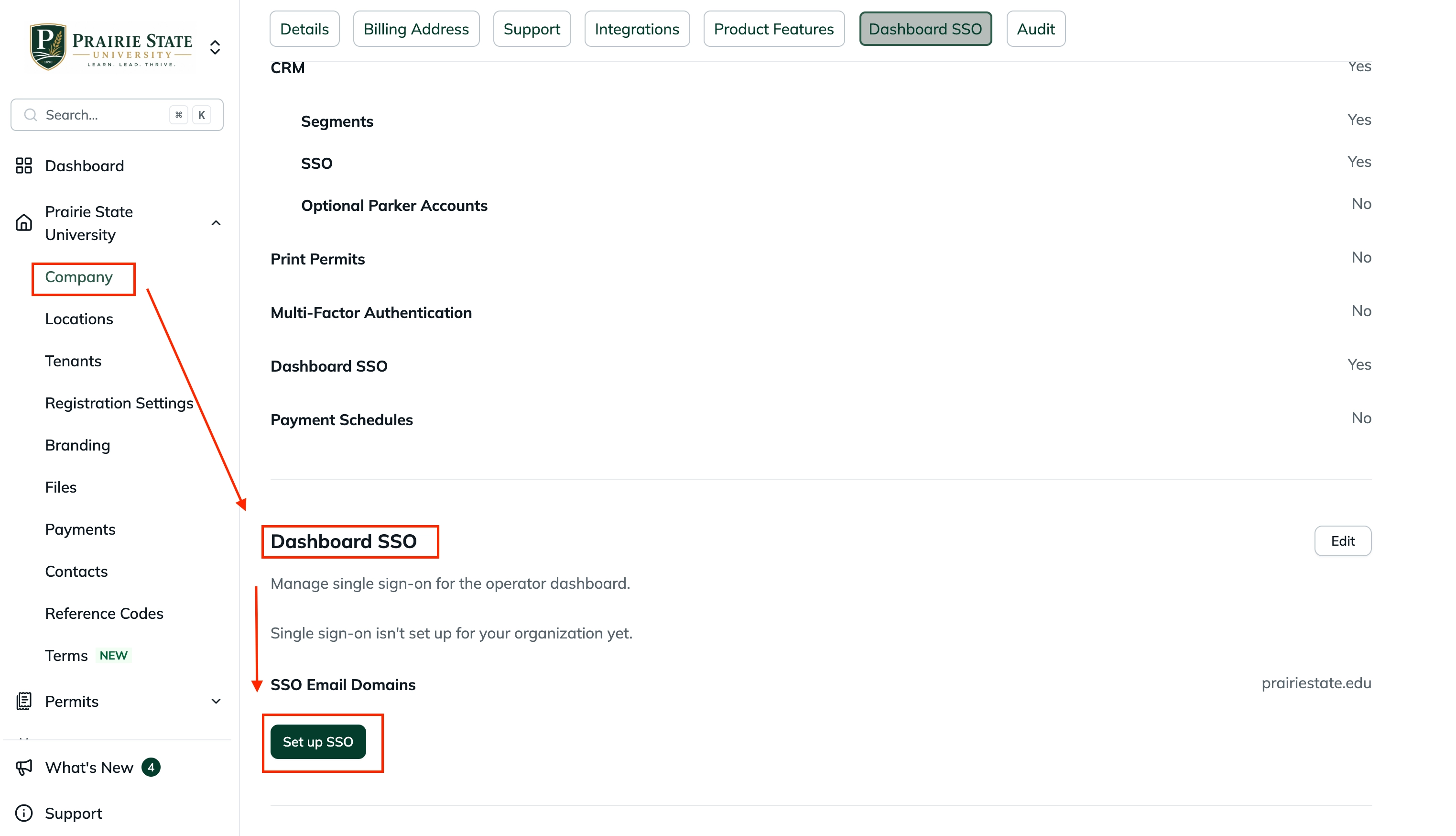
In the Offstreet Dashboard, navigate to your Company Settings and locate Dashboard SSO.
Once SSO has been enabled for your organization, you'll see your approved SSO Email Domains and a Set up SSO button.
Select Set up SSO to begin.
Important: SSO setup links expire. We recommend starting the setup when your IT team is available to complete the configuration.
2. Start the guided setup
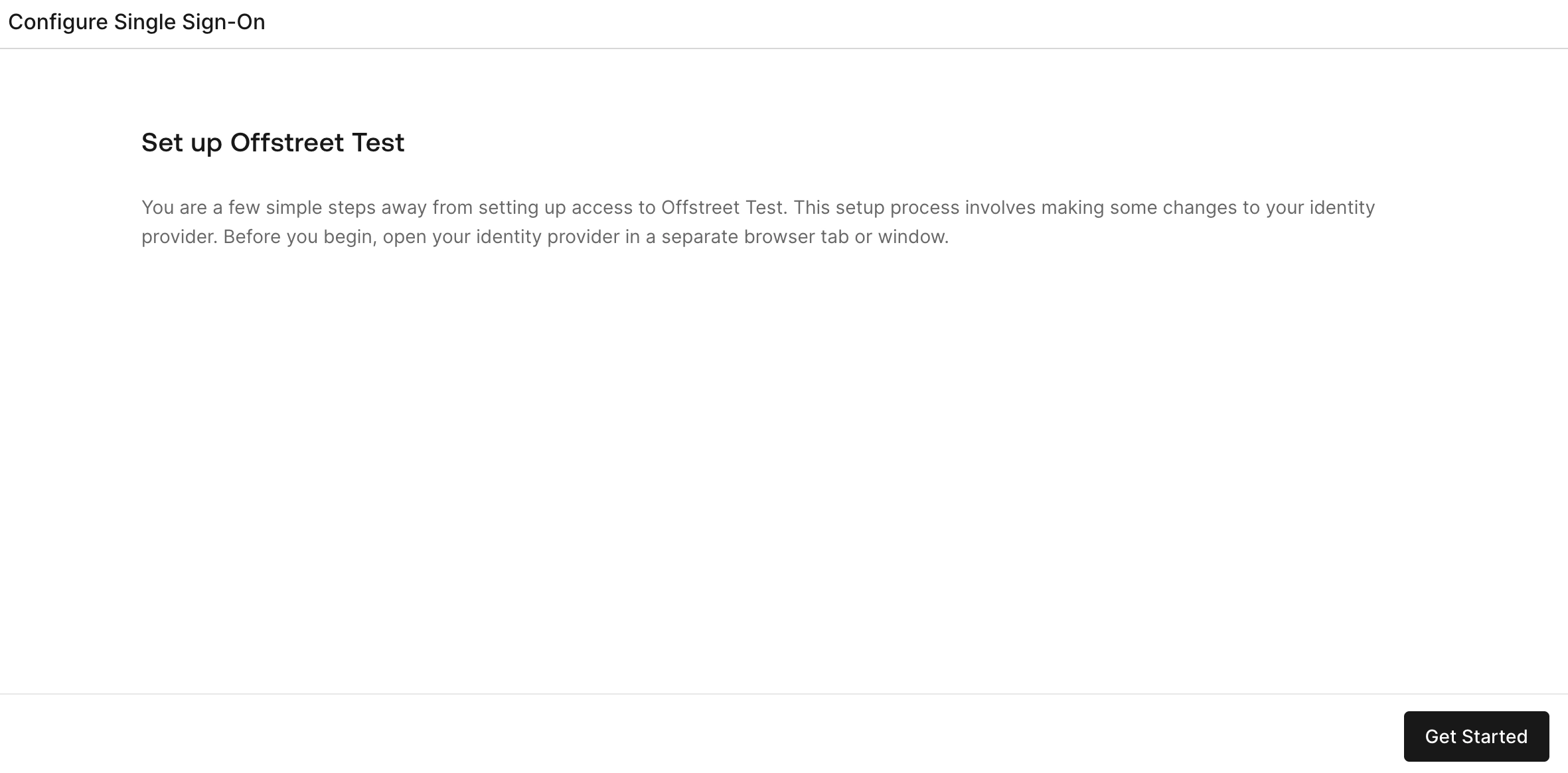
You'll be taken to the Set up Offstreet onboarding screen.
Before continuing, open your identity provider's administration console in a separate browser tab or window. You'll need to move between Offstreet and your identity provider during setup.
Select Get Started.
3. Select your identity provider
Choose the identity provider your organization uses.
The guided setup currently includes options for:
- Okta — OIDC or SAML
- ADFS — SAML
- Auth0 — SAML
- Microsoft Entra ID — OIDC
- Google Workspace — OIDC
- Keycloak — SAML
- PingFederate — SAML
If your provider isn't listed, you can configure a Custom SAML or Custom OIDC connection.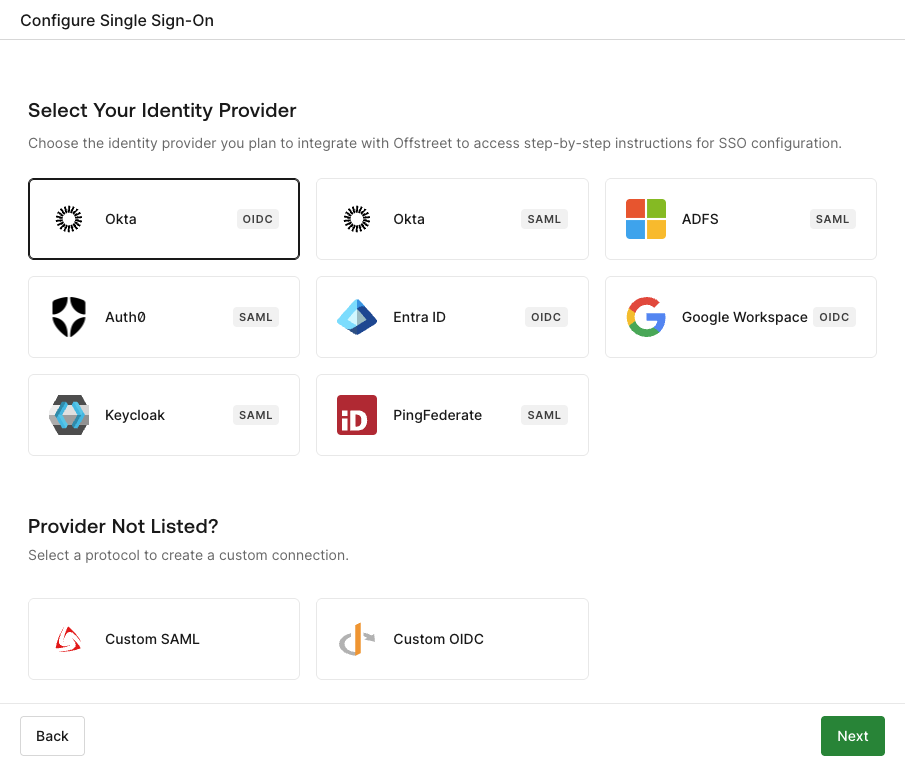
Once you've selected your provider, continue to the next step.
Configure your identity provider
The exact configuration steps depend on the provider you selected. Offstreet will display provider-specific instructions as you work through the setup.
The general process includes:
- Create Application
- Configure Connection
- Assign Access
- Test SSO
Follow the instructions displayed in Offstreet for your selected provider.
Example: Google Workspace
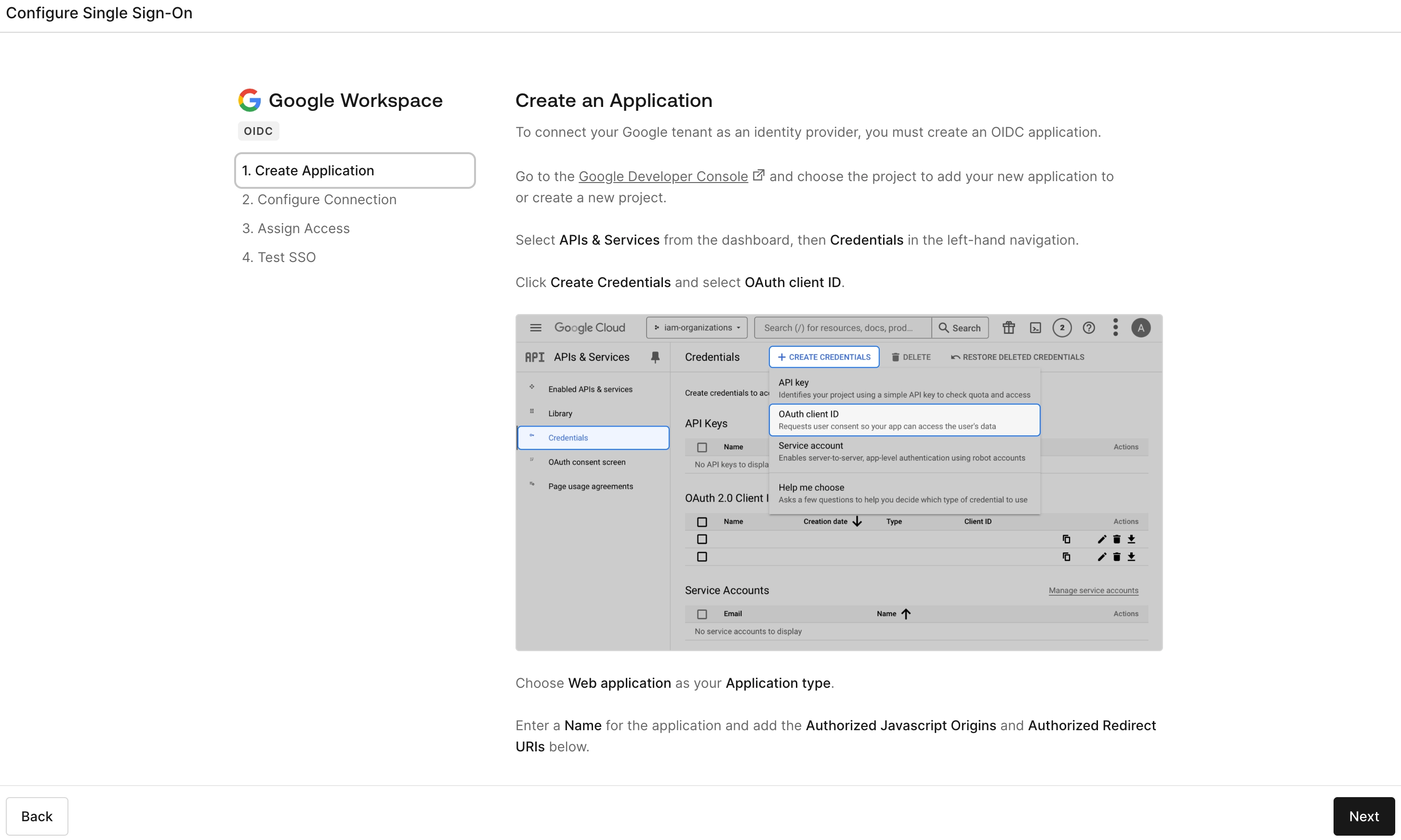
For Google Workspace, the setup guide will walk you through creating an OAuth client in the Google Cloud Console.
You'll be provided with the values you need to configure the application, including the required:
- Authorized JavaScript Origin
- Authorized Redirect URI
For example, the Offstreet setup may provide URLs similar to:
https://dashboard-login.offstreet.io
and:
https://dashboard-login.offstreet.io/login/callback
Always use the values displayed in your SSO setup rather than manually entering URLs from this article.
Configure the connection in Offstreet
After creating the application with your identity provider, return to Offstreet and enter the requested connection details.
For Google Workspace, for example, you'll be asked for:
- Google Workspace Domain
- Client ID
- Client Secret
Offstreet will also display the Callback URL associated with the connection.
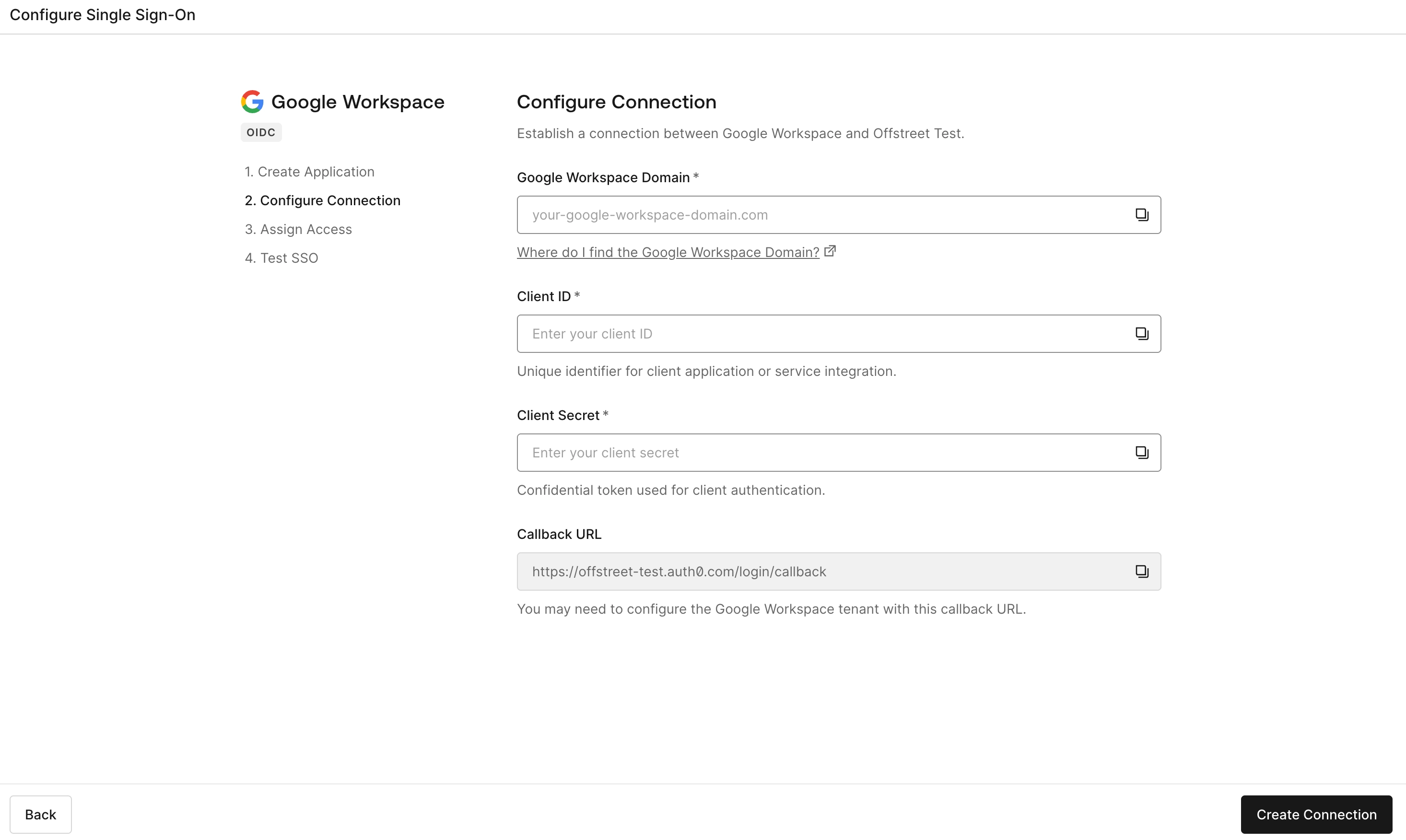
Continue through the guided setup to assign access and test the connection.
Activate SSO
After the initial SSO connection has been created, Offstreet will give you the option to turn SSO on for your organization.
Before enabling it, you'll see a reminder to assign access and test the connection as soon as possible.
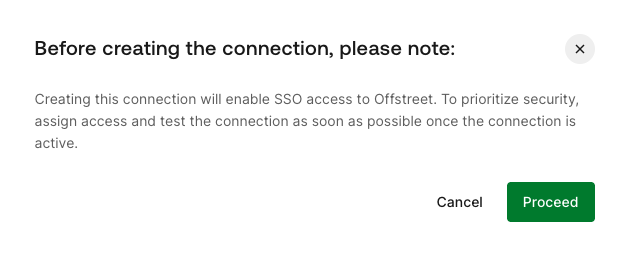
Select Proceed when you're ready.
Once SSO is enabled, test the connection by signing out of Offstreet and signing back in.
If the test is successful, users with matching Offstreet accounts and an approved email domain will use SSO on their next login.
Troubleshooting SSO
Email address isn't being provided
One of the most common configuration issues is the identity provider not sending the user's email address to Offstreet.
Offstreet needs the user's email address to identify their account and confirm that it belongs to one of the approved SSO domains.
Depending on your identity provider, this information may be configured as an attribute, claim, or similar property. The exact setup varies between identity providers.
If SSO authentication appears to complete successfully but the user still cannot access Offstreet, confirm that your identity provider is returning the user's email address as part of the authentication response.
If you're unsure how to configure this, contact Offstreet Support with:
- The identity provider you're using
- The email address of a user you're testing with
- Any error message displayed during sign-in
- A screenshot of the error, if available
We'll help determine what may be missing from the configuration.
Was this article helpful?
That’s Great!
Thank you for your feedback
Sorry! We couldn't be helpful
Thank you for your feedback
Feedback sent
We appreciate your effort and will try to fix the article