Branding
Your parking experience should feel like an extension of your organization. Now it can!
With Branding Settings, you can customize the Offstreet portal, emails, dashboard, login experience, QR codes, and more using your own logo, colours, and visual identity.
Whether you’re managing a campus, municipality, hospital, or private operation, branding helps create a more familiar and trusted experience for both parkers and administrators.
How to Customize Your Branding
1. Open Branding Settings
Navigate to:
Company Settings → Branding
This page contains all branding options, including logos, colours, QR code customization, and login page branding.
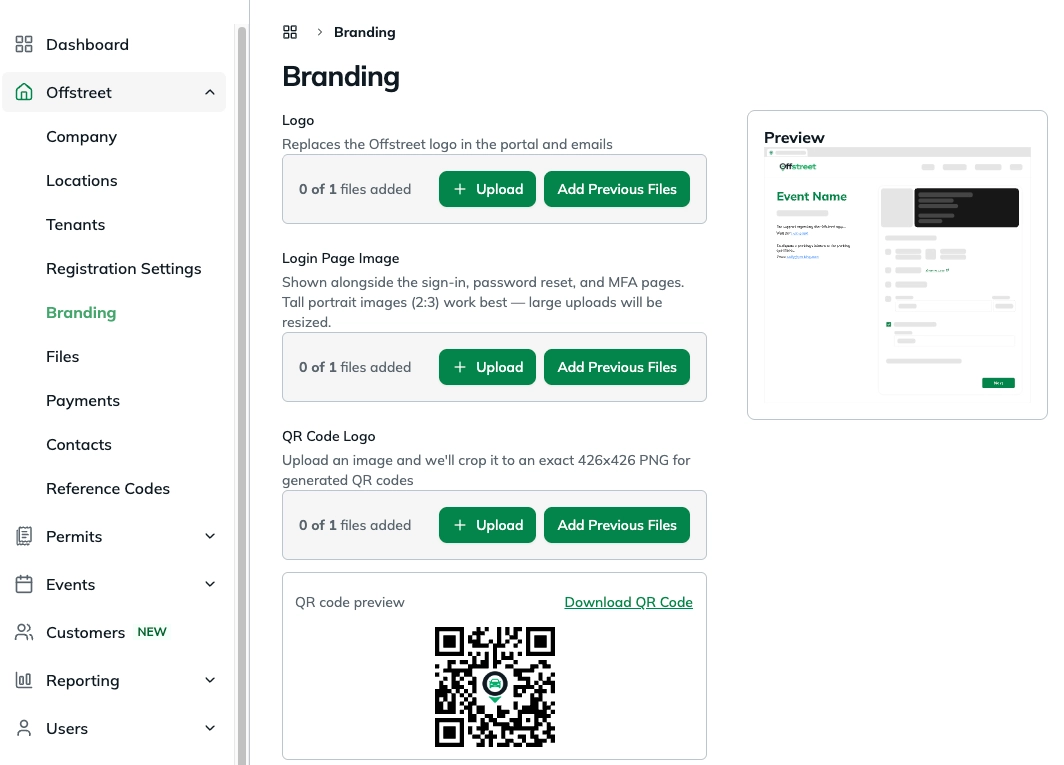
2. Upload Your Organization Logo
Upload a high-quality PNG or SVG logo.
Your logo will appear throughout the Offstreet experience, including:
- The parking portal
- Guest-facing emails
- The admin dashboard
- Registration flows
- QR codes (when enabled)
3. Add a Login Page Image
Want to make the admin experience feel even more like your own?
Upload a branded image that will appear alongside:
- Sign-in pages
- Password reset pages
- Multi-factor authentication (MFA) pages
For best results, use a portrait-oriented image with approximately a 2:3 aspect ratio.
4. Customize Your QR Codes
You can now upload a dedicated logo for generated QR codes.
When added, your logo will automatically be placed in the center of QR codes generated through Offstreet, making them easier to recognize and more visually aligned with your brand.
Offstreet automatically crops uploaded images to an optimized QR code format.
5. Add a Favicon
A favicon is the small icon shown in browser tabs.
Upload a square image (16×16, 32×32, or 48×48 pixels recommended) to replace the default Offstreet icon.
6. Set Your Brand Colours
Customize the colours used throughout the platform.
Primary Color
Used for:
- Buttons
- Checkboxes
- Toggles
- Primary actions
Accent Color
Used for:
- Links
- Secondary actions
- Highlights
Enter colour values using standard hex codes (for example: #00854B).
Screenshot: Colour settings
7. Customize Email Sender Name
Control how your organization’s name appears in outgoing Offstreet emails.
For example:
From: Parking Services
instead of
From: Offstreet Parking
This helps recipients immediately recognize who the email is from.
8. Preview and Save
Use the built-in previews to see how your branding will appear before publishing.
When you’re happy with the results, click Save. Changes are applied immediately across the relevant areas of the platform.
FAQs
Where does my logo appear?
Your uploaded logo can appear in:
- The parking portal
- Guest-facing emails
- The admin dashboard
- Registration experiences
- Generated QR codes (when a QR code logo is uploaded)
What’s the difference between the Logo and QR Code Logo?
The Logo is used throughout the Offstreet platform and communications.
The QR Code Logo is a dedicated image placed in the center of generated QR codes. You can use the same logo for both or upload a separate version optimized for QR code scanning.
Who sees the Login Page Image?
The login page image is visible to dashboard users on:
- Sign-in pages
- Password reset pages
Guests accessing parking registrations do not see this image.
Will branding affect links or QR code functionality?
No. Branding is purely visual and does not change how links, registrations, or QR codes function.
Can I change my branding later?
Absolutely. You can update logos, colours, favicons, login images, and email sender names at any time.
Can I customize fonts, layouts, or page content?
Not currently. Branding focuses on logos, imagery, colours, and email identity. Additional customization options may be added in future releases.
What file types work best?
For logos, PNG and SVG files typically provide the best results.
For login page images, we recommend high-resolution portrait images with a 2:3 aspect ratio.
For favicons, use a square image sized around 16×16, 32×32, or 48×48 pixels.
Was this article helpful?
That’s Great!
Thank you for your feedback
Sorry! We couldn't be helpful
Thank you for your feedback
Feedback sent
We appreciate your effort and will try to fix the article