How to create an Event
Build event parking with dates, locations, pricing, directions, and registration settings in one easy to use workflow.
Managing event parking doesn’t have to mean juggling spreadsheets, emails, and guesswork. Offstreet brings everything into one workflow so admins can manage details efficiently and parkers can register quickly with a smooth, guided experience.
Step 1: Navigate to Events
1. Go to Events in the left-hand menu
2. Select Event List
3. Click Create Event

Step 2: Enter Event Details
In the Details tab, enter the main event information.
Event Name
- This is what parkers will see when registering
Host Organization / Group
- Internal-only field for tracking ownership
- Not visible to parkers
Contact
- Used for internal reference and reporting
- Not visible to parkers
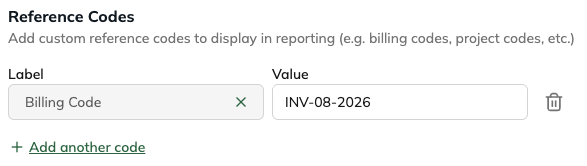
Reference Codes
- Optional reporting fields, such as billing codes or project codes
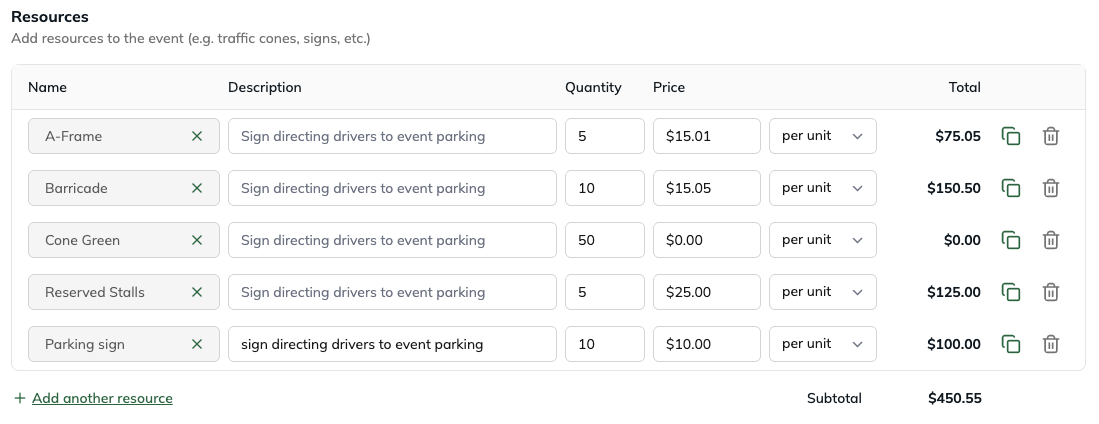
Resources
Track items and costs associated with the event:
- Add resources, such as signage, barricades, staffing, or reserved stalls
- Set quantity and price per unit
- Totals calculate automatically
Related Articles: Learn more about Resources here: Resources
Step 3: Configure Parking
In the Parking tab, create one or more parking options for the event.
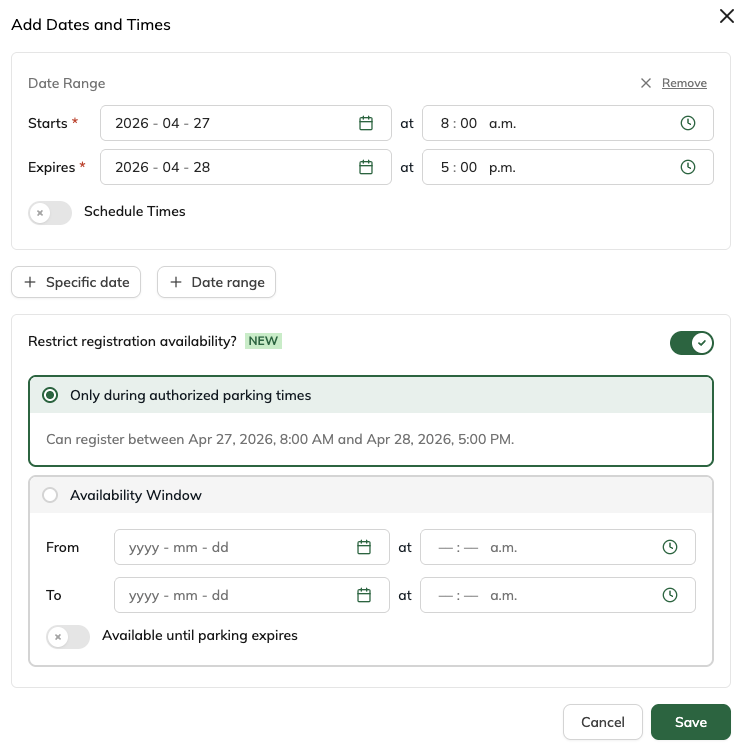
Add Dates and Times
- Choose a specific date or date range
- Set the parking start and end times
- Choose when registration should be available
Related Articles:
Learn more about setting up multi-day Events here: Multi-Day Events with Parker’s Choice
Learn more about Availability Windows here: Availability Windows
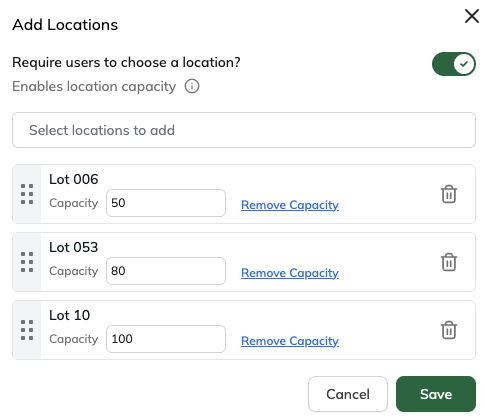
Add Locations
- Select one or more parking locations
- Set capacity for each location, if needed
- Require parkers to choose a location when managing lot-level capacity
Set Pricing
- Select the pricing type
- Enter the amount
- Choose whether the rate is charged to parkers
- Select the payment setting
Note: Flat rate pricing applies to the full parking option, not per day.
Step 4: Add Directions
In the Directions tab, add the event venue and review the parking locations on the map.
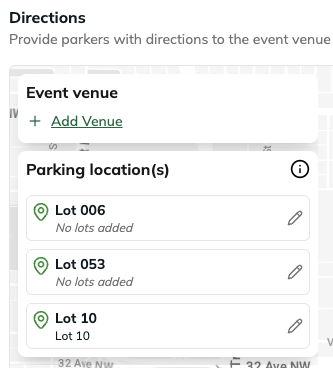
Note: Parking locations are pulled from the set Location Places. Learn more about Places here: Offstreet Places
Step 5: Configure Codes
Use the Codes tab if registration should be restricted by access codes.
Related article: Learn more about Codes here: Registration Codes for Events
Step 6: Configure Settings and Create Event
Recommended Settings
- Instructions: Add custom instructions shown on the registration page and in emails
- Email Address Required: Require an email for receipts and reminders
- Collect Additional Info: Ask parkers for any extra information needed for the event
- Edit Their Permit: Allow parkers to update permit details before the event starts
- Cancel Their Permit: Allow parkers to cancel before the event starts
Additional Customization
- Branding: Add a logo to the event registration page
- Attachments: Send files to recipients after the event concludes
- SMS Expiry Notifications: Send reminder texts to opted-in users
- Automatic Event Reports: Send post-event reports, primarily focused on revenue
Once your settings are complete, click Create Event.
Congratulations, your Event is now created in the Offstreet Dashboard!
What could I use this for?
Universities
- Game day parking
- Graduation or convocation parking
- Donor, alumni, or VIP event parking
- Department-hosted event parking
Operators
- Concert, venue, or stadium parking
- Private event parking
- Multi-lot event capacity management
- Paid event parking with post-event reporting
FAQs
Can I limit how many parkers register for each lot?
Yes. Set capacity by location and require parkers to choose a location.
Can parkers edit or cancel their permit?
Yes, if those settings are enabled. Parkers can edit or cancel before the event starts.
Where do event instructions appear?
Instructions appear on the registration page and in emails.
When are reports sent?
Reports are sent by email after the event concludes.
Was this article helpful?
That’s Great!
Thank you for your feedback
Sorry! We couldn't be helpful
Thank you for your feedback
Feedback sent
We appreciate your effort and will try to fix the article