Recurring Availability Windows
Parking schedules repeat. Now your availability rules can too.
Recurring Availability Windows let you control when each Parking Option can be viewed and selected on a repeating schedule. Use the same hours every day, set different hours for each day of the week, or create options that are available only on weekdays or weekends.
When a Parking Option is outside its availability window, you can either keep it visible as unavailable or hide it entirely.
How Recurring Availability Works
Recurring availability is configured separately for each Parking Option within a Permit Type.
Choose one of two schedule types:
- Daily: Apply the same start and end time every day.
- Weekly (Advanced): Select specific days and set a start and end time for each one.
You can also use Available from and Available to to add overall date and time boundaries. When used, the recurring schedule applies within those boundaries.
Set Up a Recurring Availability Window
Step 1: Open the Parking Option
- Go to Permits > Permit Types.
- Open the Permit Type you want to update.
- Select the Parking tab.
- Find the Parking Option and click the pencil icon to edit it.
Step 2: Set the Availability Rules
In the Availability & Timing Rules section:
- Turn on Limit when users can view and register for this option.
- Under Available from and Available to, choose:
- Any time if the option does not need an overall start or end date.
- Custom time to limit it to a specific date and time range.
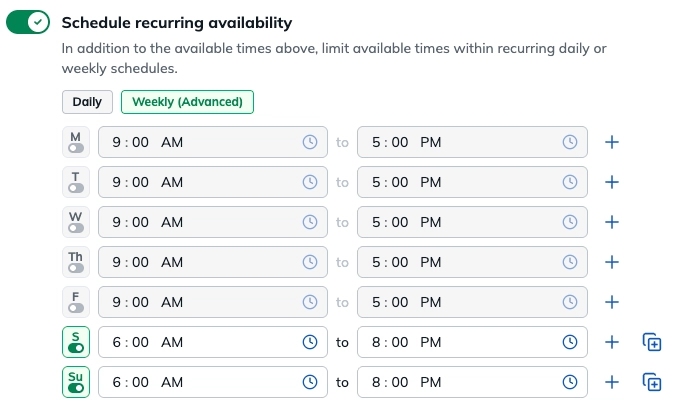
- Turn on Schedule recurring availability.
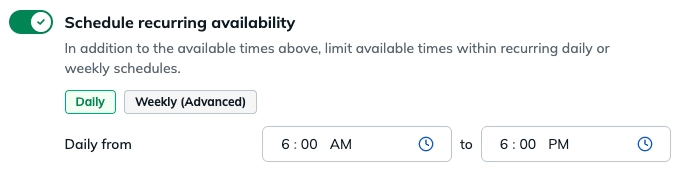
- Choose a schedule:
- Select Daily and enter the hours that should apply every day.
- Select Weekly (Advanced), choose the days the option should be available, and enter the hours for each selected day.
- If recurring availability requires 2 time windows, click the + icon to configure.

- Click Save.
Choose What Users See Outside the Window
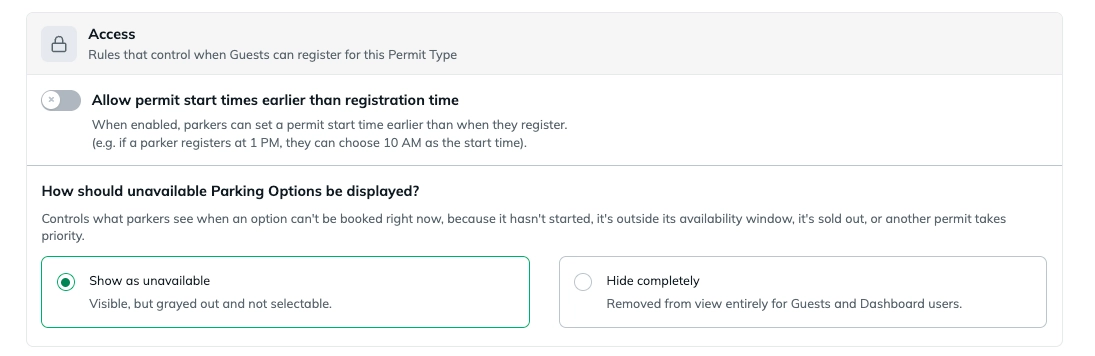
After configuring your Parking Options, scroll to Permit Type Rules and find the Access section. These rules control when parkers can register for the Permit Type.
Under How should unavailable Parking Options be displayed?, choose what parkers should see when an option cannot currently be booked. An option may be unavailable because it hasn't started yet, it's outside its availability window, it's sold out or another Parking Option takes priority.
Choose one of the following:
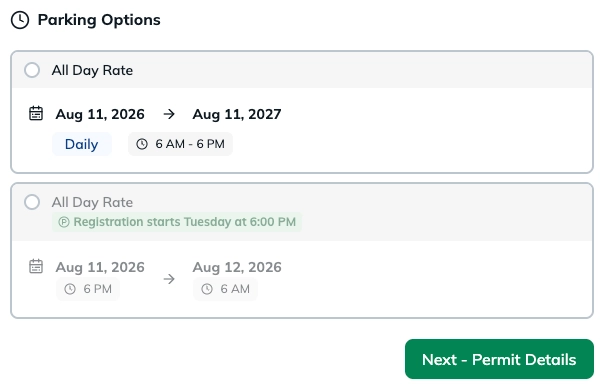
Show as unavailable
The Parking Option remains visible, but is grayed out and cannot be selected by parkers or Dashboard users. Parkers will see a message explaining when registration becomes available:
Hide Options
The Parking Option is removed from view entirely for Guests and Dashboard users while it is unavailable.
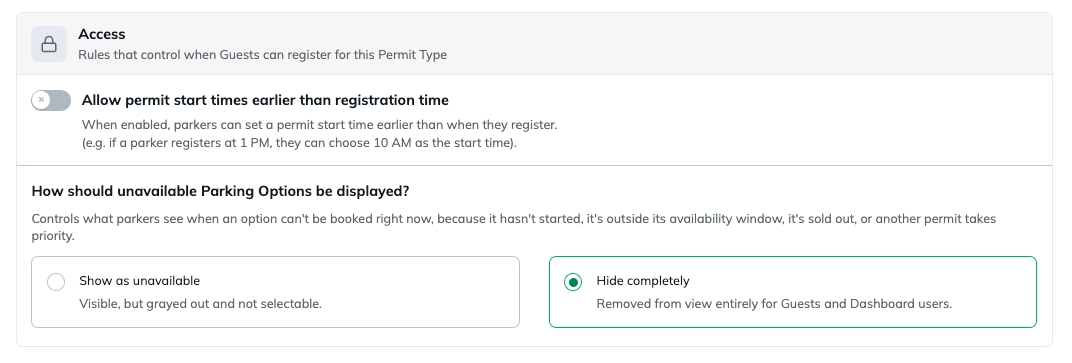
Click Save to apply the setting.
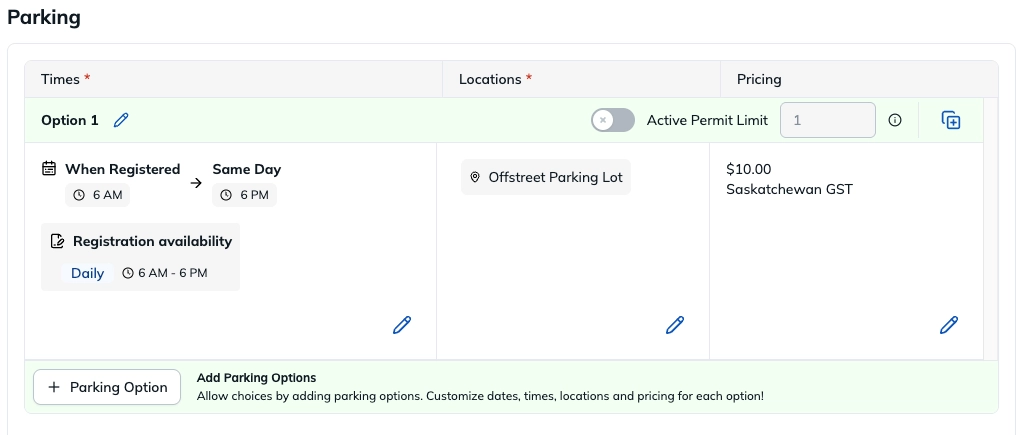
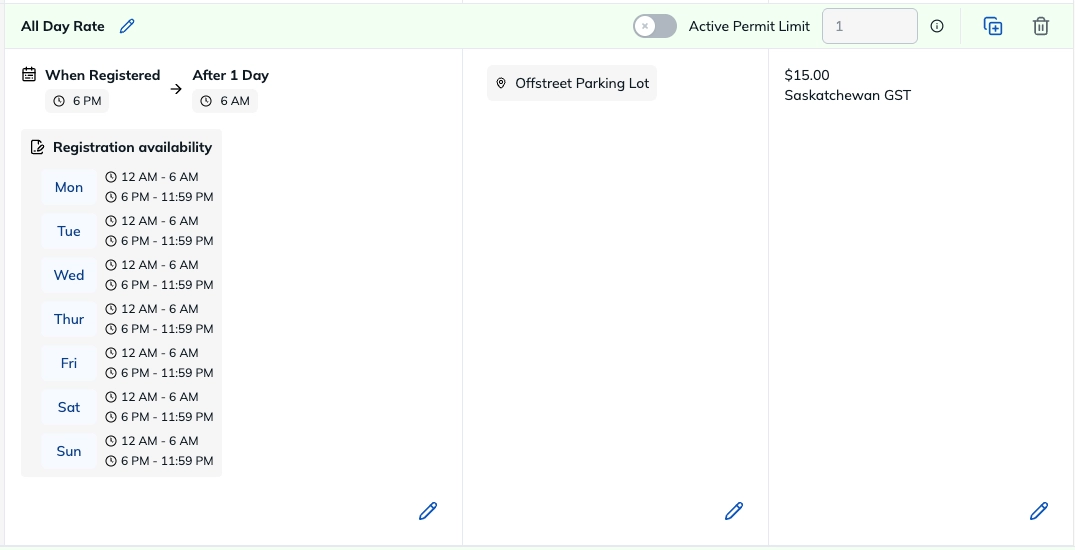
Example 1: All Day and Evening Parking Rates
In this example a parker can register for 12 hours of parking starting at either 6 AM or 6 PM depending on the time of registration:
- All Day Rate: 6:00 AM to 6:00 PM
- Evening Rate: 6:00 PM to 6:00 AM
Example 2: Weekday and Weekend Parking Rates
In this example a parker can register between 6 AM and 8 PM everyday but the rate will change between Weekdays and Weekends.
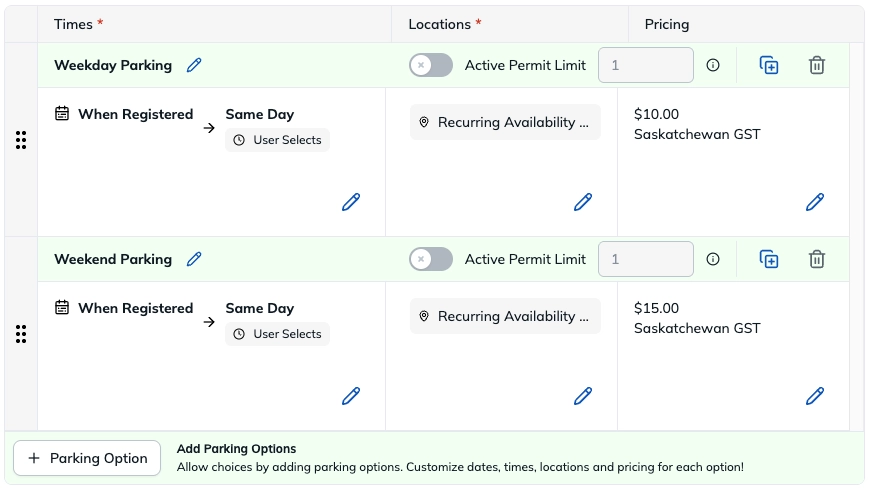
- Weekday Parking: Monday to Friday, 6:00 AM to 8:00 PM
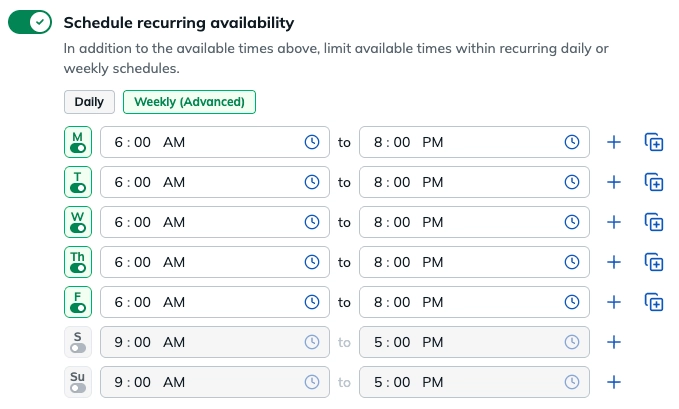
- Weekend Parking: Saturday and Sunday, 6:00 AM to 8:00 PM
FAQs
Can I use the same hours every day?
Yes. Choose Daily and enter one start and end time.
Can I use different hours on different days?
Yes. Choose Weekly (Advanced), select the applicable days, and set the hours for each day.
Can recurring availability be limited to a specific date range?
Yes. Set a Custom time under Available from and Available to, then add the recurring schedule. The Parking Option must fall within both sets of rules to be available.
Was this article helpful?
That’s Great!
Thank you for your feedback
Sorry! We couldn't be helpful
Thank you for your feedback
Feedback sent
We appreciate your effort and will try to fix the article