Using Permit Codes
Codes allow you to control who can access a permit type by requiring users to enter a code during registration.
This is useful when access should be limited to a specific group, such as employees, residents, or event attendees.
When to Use Codes
Use codes when you want to:
- Restrict access to authorized users only
- Share access with a specific group
- Control how many permits are created
- Track usage by code
Types of Codes
Single Code (Basic)
Use one shared code for all users.
- Simple to set up
- Easy to distribute
- Best for small groups
Example:
All employees use the same code: STAFF2026

Multiple Codes (Advanced)
Enable Advanced to create and manage multiple codes.
This allows you to:
- Create unique codes for different users or groups
- Set limits per code
- Track usage individually
Best for larger or more controlled access scenarios.

Setting up Codes
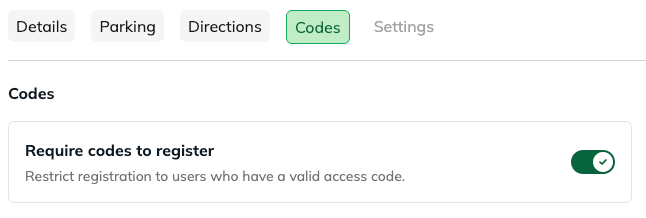
Require Codes to Register
You can require users to enter a valid code before registering.
- Enabled → users must enter a code to continue
- Disabled → anyone can access the permit
If no valid code is entered, the user will not be able to proceed.
Code Details
You can customize what users see when entering a code.
- Title: Controls the label shown in the portal.
- Example: "Enter Access Code"
- Description:Provides guidance to users.
- Example: "Use the code provided by your building manager"
Add Codes
- Add Code → create a single code
- Add Multiple → paste in a list
- Upload Codes → import in bulk
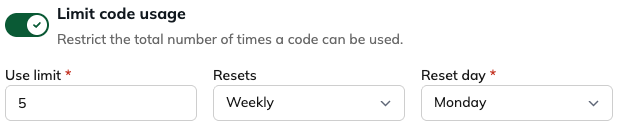
Limit Code Usage
Control how many times a code can be used, and optionally have it reset (like weekly or monthly).
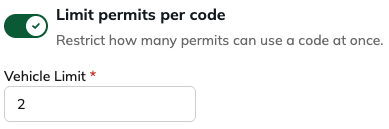
Limit Permits per Code
Set how many vehicles can use the same code at the same time.
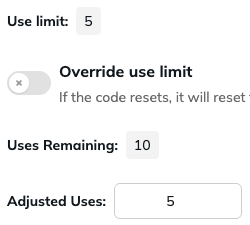
Override Use Limit
Turn on Override use limit and set a custom limit just for that code. When it resets, it’ll follow this new limit instead of the default.
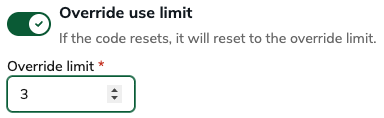
Useful when most codes follow a standard rule, but some need exceptions.
Adjust Uses on the fly
You can also add more uses to a code using Adjusted Uses:
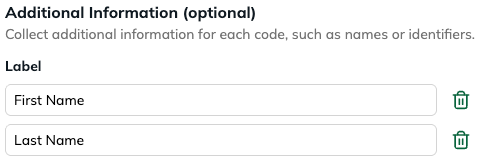
Additional Information (Optional)
You can store extra information on each code.
Examples:
- Name
- Employee ID
- Internal reference
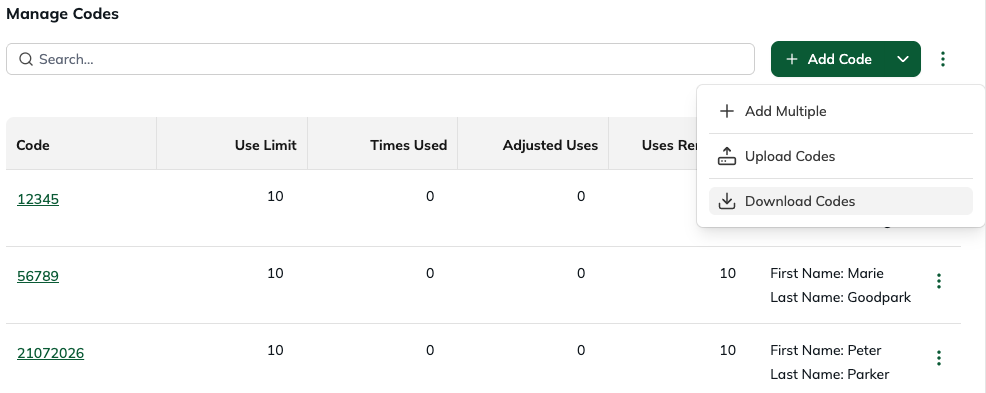
Manage Codes
From the table, you can quickly:
- See usage and remaining uses
- Edit or remove codes
- Download your list
How Codes Work with Permits
- A valid code is required (if enabled)
- Each code can have its own limits
- Codes work alongside other limits in the system (e.g. permit limits)
The most restrictive rule always applies
Was this article helpful?
That’s Great!
Thank you for your feedback
Sorry! We couldn't be helpful
Thank you for your feedback
Feedback sent
We appreciate your effort and will try to fix the article