How to Update the License Plate on a Permit
Update or add license plates directly from your permit confirmation receipt.
You can update the license plate attached to your parking permit directly from your permit confirmation receipt. Depending on the parking configuration, you may also be able to add multiple license plates to the same permit.
Step 1: Open the Permit Confirmation Receipt
When you register using the portal link, you will be prompted to enter your email address.
After completing the registration, you will receive a permit confirmation receipt by email.
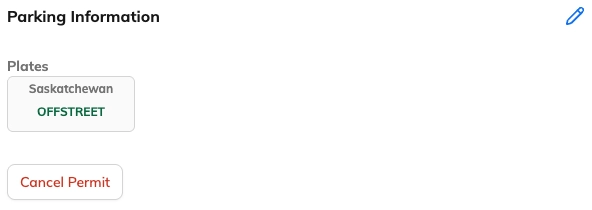
The confirmation receipt contains a Parking Information section with a blue pencil icon that allows the permit information to be edited.
Step 2: Click the Blue Pencil Icon
Scroll to the Parking Information section and click the blue pencil icon.
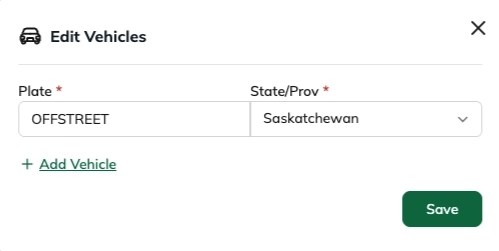
This opens the Edit Vehicles window.
Step 3: Edit the Existing Plate
Inside the Edit Vehicles window, you can update the existing license plate and state/province information.
After making the changes, click Save.
Step 4: Add Additional License Plates (Optional)
If the parking settings allow multiple license plates on a permit, you can click Add Vehicle to add another plate.
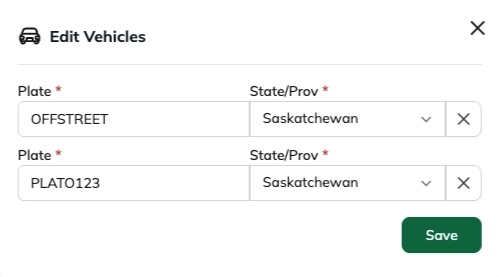
Once all changes are complete, click Save to update the permit.
Step 5: Send an Updated Receipt
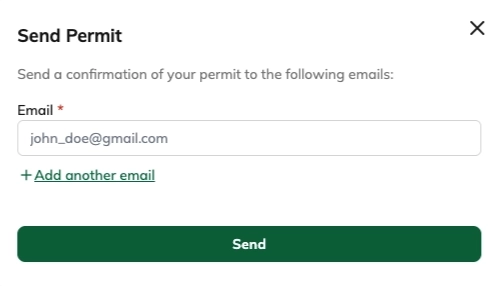
After saving the updated permit information, we recommend sending a new confirmation receipt.
- Scroll back to the top of the receipt.
- Click Send email.
- Enter the desired email address.
- Click Send.
This sends an updated permit confirmation containing the latest license plate information.
Additional Notes
- The permit updates immediately after clicking Save.
- You do not need to create a new permit when changing license plates.
- If multiple vehicles are enabled, you can manage all permitted plates from the same edit window.
- We recommend you always send yourself an updated receipt after making changes.
Was this article helpful?
That’s Great!
Thank you for your feedback
Sorry! We couldn't be helpful
Thank you for your feedback
Feedback sent
We appreciate your effort and will try to fix the article